Kaseya Intelligence
 Security and navigation
PERMISSIONS Security level with Admin Feature Access permission to Kaseya Intelligence.
NAVIGATION Left Navigation Menu > Admin > Admin Categories > Automation > Kaseya Intelligence
IMPORTANT Kaseya Intelligence features are included with a Kaseya 365 Ops, ITSM +, and Ultimate Autotask subscriptions. Refer to Upgrading to ultimate for more information.
BEFORE YOU BEGIN This feature may be hidden in your Autotask instance because it is not activated. If so, you can activate it on the Left Navigation Menu > Admin > Admin Categories > Activations page. Refer to Activations.
Kaseya Intelligence for Autotask introduces AI-powered tools—Smart Ticket Summary, Smart Writing Assistant, Smart Resolution Summary, and Ticket Triage—to streamline documentation, enhance communication, and improve ticket triaging for greater team efficiency.
Smart Summaries
IMPORTANT Selecting a form template is the equivalent of manually populating the form. Form template settings will override any previously populated field content, including notification settings, additional contacts, and secondary resources.
To enable or disable Kaseya Intelligence smart summary settings:
-
Navigate to Left Navigation Menu > Admin > Admin Categories > Automation > Kaseya Intelligence > Kaseya Intelligence Settings.
-
Toggle the Enable Kaseya Intelligence button.
-
Select the Smart Summaries tab.
-
Select the checkbox next to the setting(s) you wish to enable or disable.
-
Click Save Changes.
Smart Ticket Summary
With Kaseya Intelligence:
-
Succinct, AI-powered analysis of an Autotask ticket surfaces key details, actions taken, and next steps. A 1-click solution to getting your team up-to-speed on ticket information.
Improve your Smart Ticket Summaries:
-
Smart Ticket Summaries use key ticket information in order to provide quick, up-to-date information to help you get informed about an ongoing ticket. To improve the accuracy and consistency of this information, be sure you and your team provide key information in the Description, Ticket Notes and Time Entries. Internal Notes will not be utilized for these Ticket Summaries.
Additionally, be sure to include key ticket information such as the following:
-
Issue-Type
-
Sub-Issue Type
-
Any devices related to or impacted by the issue
With limited information available, a Smart Ticket Summary will be restricted on its ability to provide information:
-
"I checked all 79 AP are online and rebooted the closet AP and confirmed with Sandy that there were no more issues."
With additional information added to the ticket as described above, Smart Ticket Summary can become far more useful to your team:
-
"Tristan verified that all 79 Access Points (APs) at the Dover office are online. He rebooted the closet AP and confirmed with Sandy that the issue has been resolved. No further action is required at this time."
Smart Resolution Summary
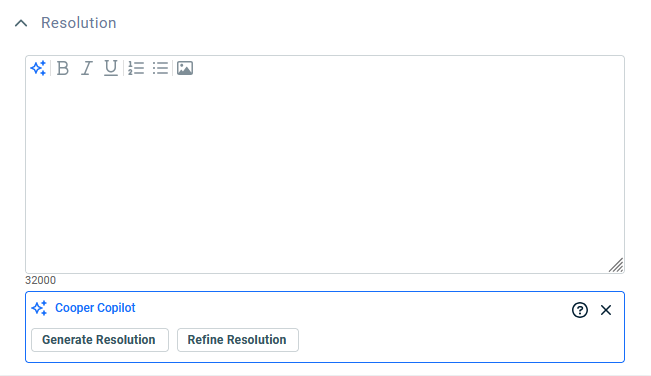
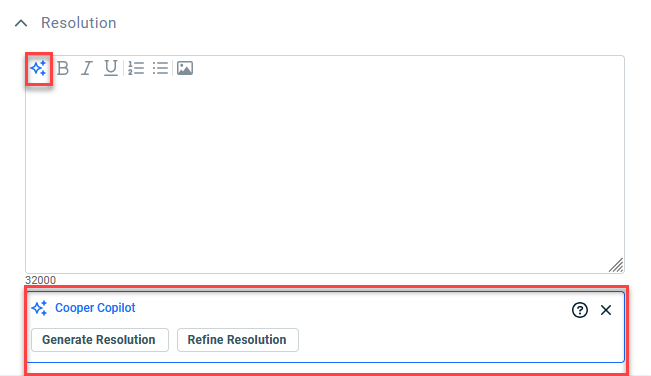
Smart Resolution Summary is available in the Resolution field when editing a Ticket. To show or hide the available options, click the  icon. The Resolution field’s visibility is controlled by your Ticket Category. Refer to The General tab.
Generate Resolution
-
From an existing ticket, click the Edit button and navigate to the Resolution field.
-
Click Generate Resolution to create a new Resolution summary from the Ticket information, Notes, and Time Entries.
-
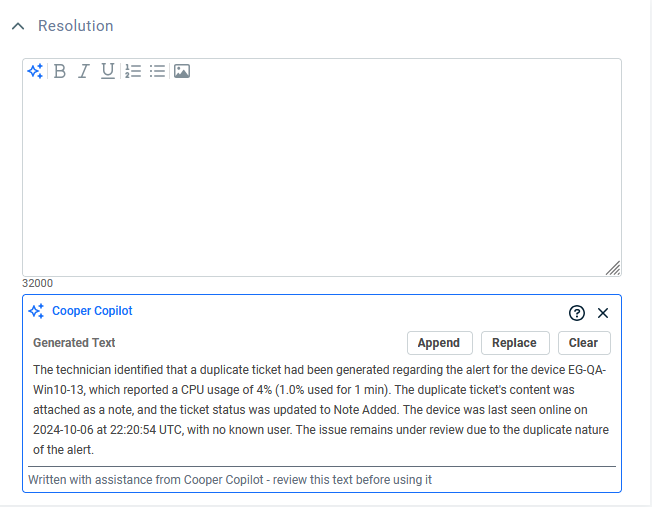
Click Append to add the generated text to the Resolution field or Replace to replace any existing text.
-
Click Save to confirm all changes.
Refine Resolution
-
From an existing ticket, click the Edit button and navigate to the Resolution field.
-
Click Refine Resolution to take the information from within the Resolution field and provide a summarized and refined version of this information.
-
Click Append to add the generated text to the Resolution field or Replace to replace any existing text.
-
Click Save to confirm all changes.
Smart Writing Assistant
Where is Smart Writing Assistant visible?
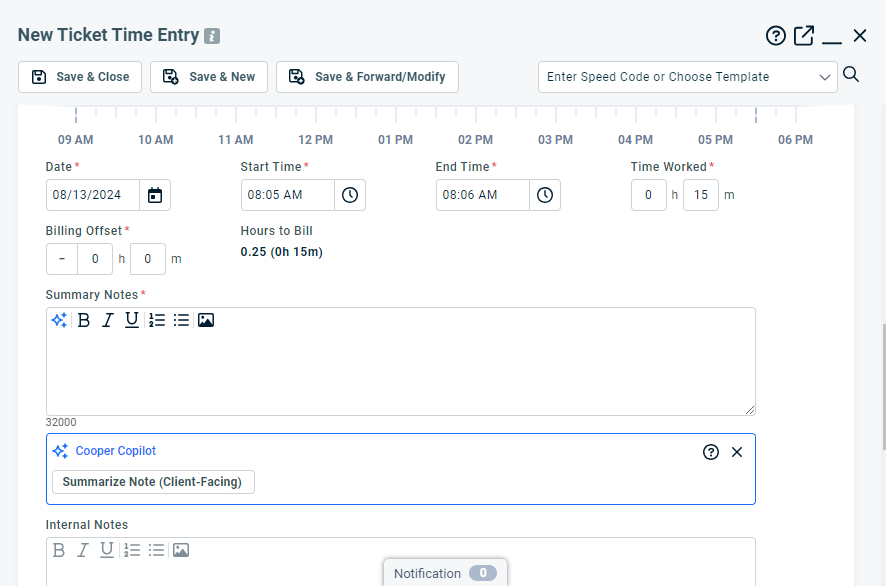
Smart Writing Assistant is available when creating or editing a Ticket Note, Time Entry. To show or hide the available options, click theicon.
Summarize Notes
-
From an open ticket, click New Time Entry or New Note.
-
Add your notes in the Summary Notes or Description and complete all other required fields.
-
Click Summarize Notes (Client-Facing).
-
Select if you want to Append or Replace your current notes with the new Smart Writing Assistant text.
-
Click Save & Close to confirm all changes.
Languages
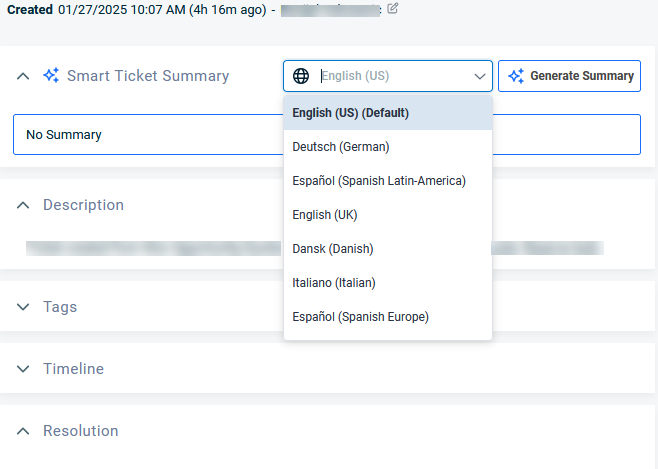
Kaseya Intelligence supports generating content in multiple languages.
To set a Default Language:
-
Navigate to Left Navigation Menu > Admin > Admin Categories > Automation > Kaseya Intelligence > Kaseya Intelligence Settings.
-
In the Languages section, select a language from the Default Language drop-down list.

-
Click Save Changes.
NOTE Only one Default Language can be selected at a time. This Default Language applies to all Kaseya Intelligence generated content, unless the user specifies another language.
Other Available Languages
To enable or disable other supported languages, check the boxes next to the desired languages. When multiple languages are selected, they will be available alongside the default language.
Supported Languages:
-
Arabic
-
Chinese (Simplified)
-
Chinese (Traditional)
-
Croatian
-
Danish
-
Dutch (Belgium)
-
Dutch (Netherlands)
-
English (UK)
-
English (US)
-
Spanish (Spain)
-
Spanish (Latin-America)
-
Faroese
-
Filipino
-
French (Canada)
-
French (France)
-
Greek
-
Hebrew
-
Hindi
-
Hungarian
-
Icelandic
-
Italiano (Italian)
-
Japanese
-
Korean
-
Latvian
-
Macedonian
-
Malay
-
Maltese
-
Māori
-
Norsk (Norwegian Bokmål)
-
Polish
-
Portuguese (Brazil)
-
Portuguese (Portugal)
-
Suomi (Finnish)
-
Svenska (Swedish)
-
Swedish
-
Thai
NOTE The default language is not available for selection.
Ticket Triage
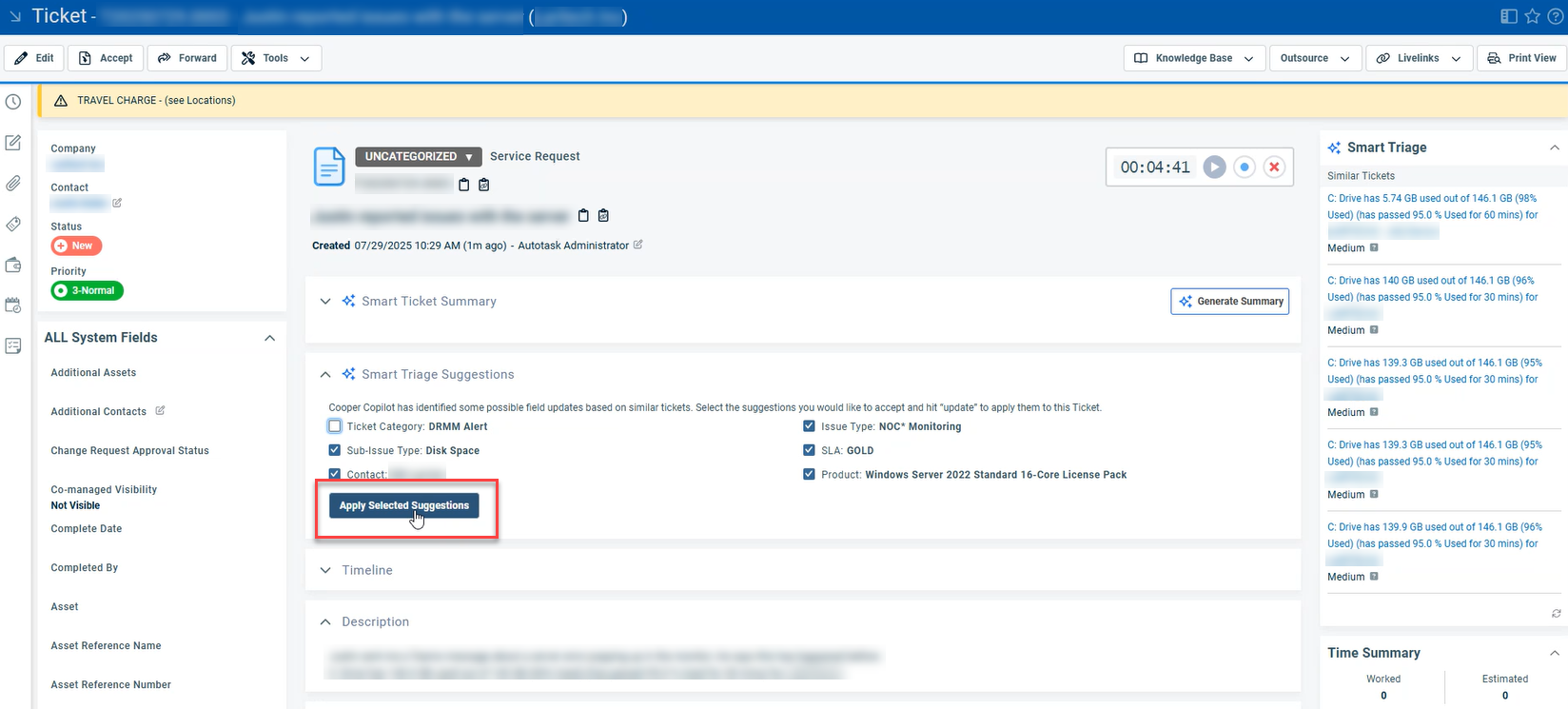
Ticket Triage is part of Kaseya Intelligence for Autotask. It uses AI and association algorithms to streamline ticket management by identifying missing or inconsistent information, suggesting ticket field values, and assisting with ticket assignment. Ticket Triage analyzes a subset of your historical tickets to make suggestions on future tickets, using only the ticket data from the ticket’s organization.
ALERT To prepare your Autotask environments for Ticket Triage and to improve results, refer to Ticket Triage assessment .
Ticket Triage includes the following configuration areas:
- Ticket Data Analysis
- Triage Actions (Workflow Rules)
- Assignment Eligibility
IMPORTANT Ticket Triage suggestions and assignments are controlled by Workflow Rules and your Ticket Triage configuration. Refer to Triage Actions (Workflow Rules).
Configure Ticket Triage
You configure Ticket Triage from the Ticket Triage tab on the Kaseya Intelligence page, and by creating Workflow Rules that use Ticket Triage actions.
Open Ticket Triage settings
- Navigate to Left Navigation Menu > Admin > Admin Categories > Automation > Kaseya Intelligence.
- Click the Ticket Triage tab.
The Ticket Triage tab is divided into the following sections:
- Ticket Data Analysis.
- Triage Actions.
- Assignment Eligibility.
Ticket Data Analysis
Use the Ticket Data Analysis section to define which historical tickets Kaseya Intelligence will analyze to understand your Service Desk operations.
IMPORTANT Before configuring this section, refer to the Ticket Triage Ticket Data Analysis documentation for details on expected outcomes after the configuration is complete.
Configure Ticket Data Analysis
-
In the Ticket Status field, select up to 15 statuses that represent your
most reliable ticket data.
NOTE Include completed tickets, tickets nearing completion, or tickets that are unlikely to change further.
- In the Queues field, select up to 15 queues whose tickets you want to include in the analysis.
-
In the Ticket Category field, select up to 15 categories to include.
- By default, all categories are analyzed.
- Selecting specific categories excludes any categories that are not selected.
-
In the Analyze tickets created on or after section, select a date to have
Kaseya Intelligence analyze only tickets created on or after that date.
The page displays the active analysis window, for example: “Analyzing tickets from: March 10, 2024 to present.”
-
In the Excluded Organizations section, select any organizations you want
to exclude from triage analysis.
- Tickets from excluded organizations will not be analyzed or used for Ticket Triage suggestions.
- There is no limit to the number of organizations that can be excluded.
- Click Save.
NOTE For optimal ticket analysis results, use a date within the last 6–8 months to ensure the most accurate and relevant data set. If no date is selected, only tickets from the past 24 months will be analyzed.
Triage Actions (Workflow Rules)
Ticket Triage uses Workflow Rules actions, called Triage Actions, to triage and optionally assign incoming tickets. Triage Actions define when Ticket Triage runs and which fields it can suggest or auto‑update.
On the Ticket Triage tab, the Triage Actions section displays a banner similar to the following:
Ticket Triage requires Workflow Rules to function. Ticket Triage uses Workflow Rules actions to triage incoming tickets. Set up Workflow Rules to begin taking advantage of the Ticket Triage action.
Configure Triage Actions in Workflow Rules
- Click View Workflow Rules in the Triage Actions section, or navigate to Left Navigation Menu > Admin > Admin Categories > Workflow Rules.
-
Create a new Workflow Rule, or edit an existing Workflow Rule for
Service Desk.
Define the events and conditions that will trigger Ticket Triage, such as when a ticket is created, when a specific field is changed, or when a ticket enters a particular status or queue. Refer to Adding, editing, and copying workflow rules.
- In the Actions section of the Workflow Rule, add a Ticket Triage action.
-
In the Ticket Triage action, configure the fields that Ticket
Triage can manage, such as:
- Issue Type
- Primary Resource
- Priority
- Queue
- Sub‑Issue Type
-
Configure how Ticket Triage behaves for this action:
- Suggest – Ticket Triage proposes values in the ticket UI, and users review and apply changes.
- Auto‑apply – Ticket Triage automatically updates selected fields when AI confidence is high enough, based on your thresholds.
-
Where available, set the Auto-Apply Confidence Threshold to control when
Ticket Triage is allowed to automatically update fields.
NOTE If the AI confidence is below the threshold, the action will not auto‑update fields, but can still provide suggestions for users to review.
- Save and activate the Workflow Rule.
Once configured, Ticket Triage will run according to your Workflow Rules and will surface suggestions or apply changes directly to tickets based on your settings.
How Ticket Triage uses workflow rules
Ticket Triage evaluates all applicable workflow rules at the time of the triggering event (for example, Ticket Created). The results of those rules are combined into a single triage operation.
Evaluation order: Auto‑apply vs Suggest
If multiple rules affect the same field, Ticket Triage resolves behavior in this order:
-
Auto‑apply
-
Suggest
-
None
That means:
-
If one rule is set to Auto‑apply a field and another rule is set to Suggest that same field, the Auto‑apply behavior wins.
-
If no rule is set to Auto‑apply for a field, but one or more rules Suggest it, the field is suggested.
Multiple workflow rules at once
-
If several workflow rules qualify for the same event and meet the ticket conditions, all of them are evaluated.
-
Ticket Triage does not run separate triages per rule. Instead, it merges the outcomes into one combined triage result.
-
Different rules can contribute different fields. For example:
-
Rule A: suggests Queue
-
Rule B: auto‑applies Resource and Priority
-
Rule C: suggests Sub‑issue
-
The final triage for that ticket can use all four fields (Queue, Resource, Priority, Sub‑issue), respecting the auto‑apply vs suggest hierarchy above.
-
-
Point‑in‑time evaluation
-
Workflow rules are evaluated for Ticket Triage only at the exact moment a ticket event occurs, such as when a ticket is created or updated.
-
Ticket Triage does not collect or pool rule results over time. Only the rules whose conditions are met at that specific event will influence the triage action for the ticket.
-
Ticket Triage evaluates workflow rules only when the ticket event occurs and does not carry their results forward to future events.
Assignment Eligibility
Use the Assignment Eligibility section on the Ticket Triage tab to define which queues and resources Kaseya Intelligence can use when suggesting or auto‑assigning tickets.
ALERT Co‑Managed users may be used if they are included in your assignment eligibility selections.
Configure Assignment Eligibility
- On the Ticket Triage tab, scroll to the Assignment Eligibility section.
-
Under Queues, select the queues that will be available for Ticket
Triage suggestions or auto‑assignment.
These queues define where Kaseya Intelligence is allowed to route tickets when assigning by queue.
-
Under Resources, configure which resources may be assigned tickets by
Ticket Triage:
- Workgroups – Select the workgroups whose members will be available for assignment. Refer to Managing workgroups.
- Departments – Select the departments whose resources will be available for assignment. Refer to Departments.
- Specific Resources – Select any individual resources who will be available for assignment.
There is no limit to the number of resources you can include.
- Click Save.
Kaseya Intelligence will consider only resources and queues included in the Assignment Eligibility section when making suggestions or auto‑assigning tickets.
Using Ticket Triage in tickets
After Ticket Data Analysis, Triage Actions, and Assignment Eligibility are configured, Ticket Triage suggestions and assignments appear in the ticket UI according to your Workflow Rules and Ticket Category configuration.
Ticket Category requirements
- Navigate to Left Navigation Menu > Admin > Admin Categories > Features & Settings > Service Desk (Tickets) > Ticket Categories and open the Ticket Category used by the tickets you want to triage.
-
On the Main Body configuration, verify that the
Ticket Triage Suggestions component is set to Visible.
If Ticket Triage Suggestions is not set to Visible, the Ticket Triage panel and triage details will not appear.
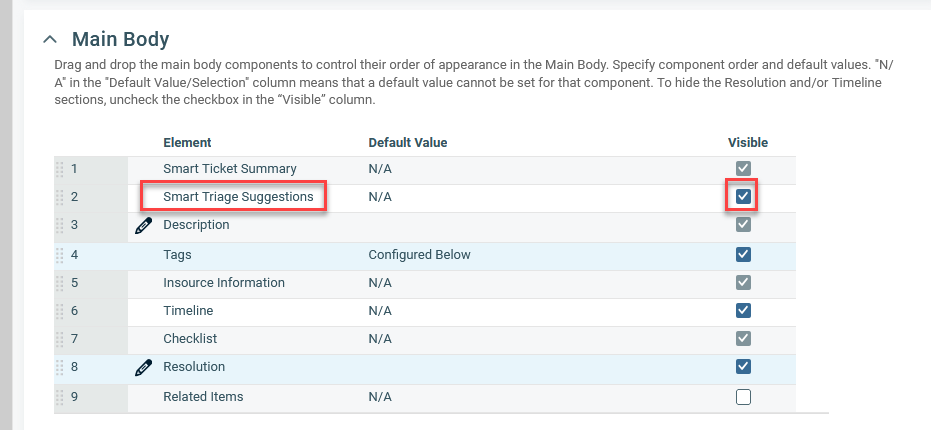
For more information, refer to Main body .
- On the Insights tab of the same Ticket Category, move the Ticket Triage insight into the Visible Insights section.
- Save & Close.
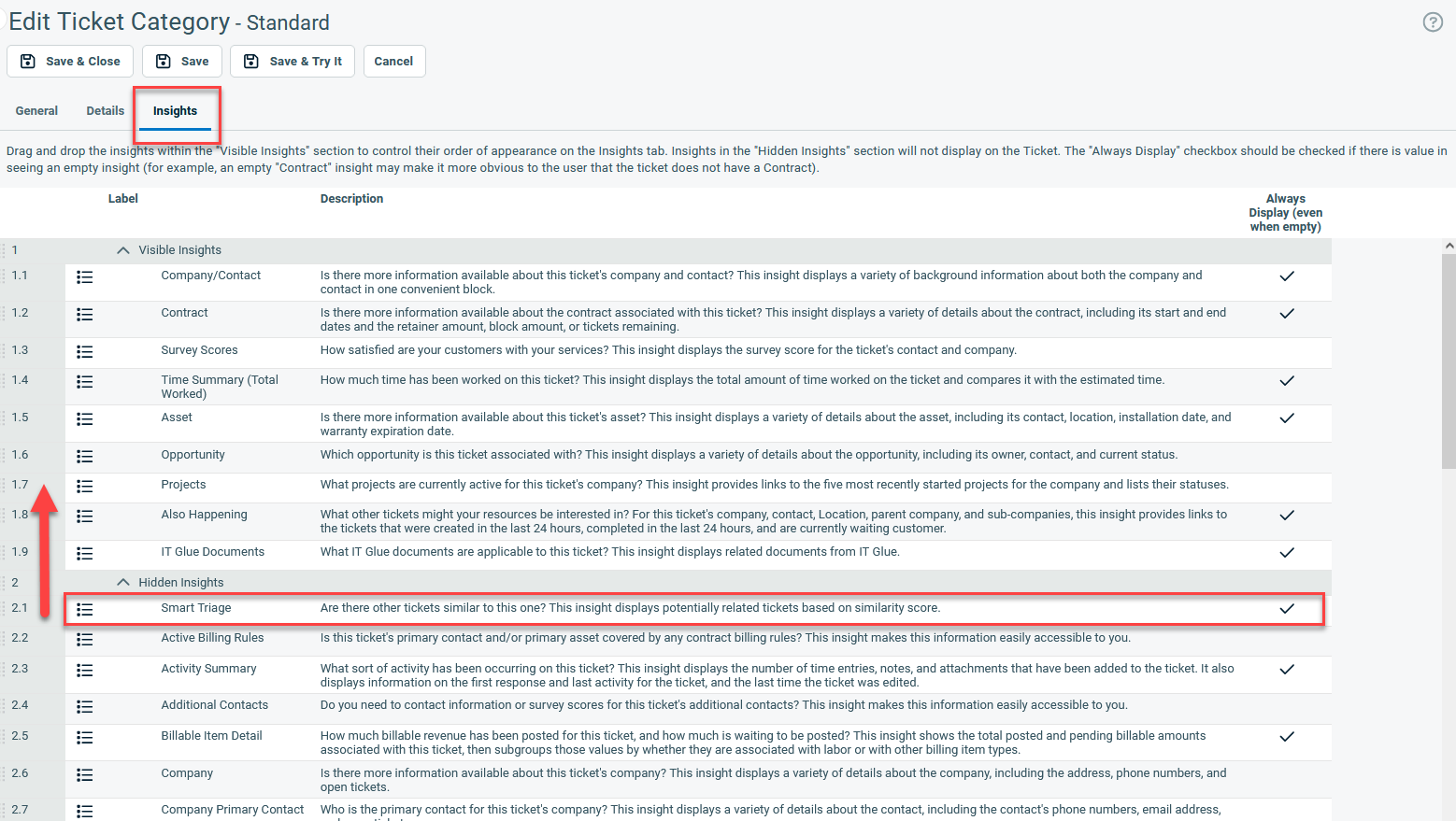
For more information, refer to Display or hide an insight for a category .
Analyze and apply Ticket Triage suggestions
- Open a ticket that matches the conditions defined in your Ticket Triage Workflow Rule.
-
In the Triage section on the ticket, review any suggested values
for supported fields, such as:
- Priority.
- Issue Type and Sub‑Issue Type.
- Primary Resource.
- Queue.
-
If your Workflow Rules are configured for suggestions only:
- Select the suggestions you want to apply.
- Click Apply.
- The selected changes are applied to the ticket.
-
If your Workflow Rules are configured for auto‑updates:
- Review the fields that were changed by Ticket Triage and any rationale provided.
- You can manually adjust these fields if needed.
-
View the Ticket History to see what changes were applied by Ticket
Triage.
For more information, refer to Viewing the ticket history .
Why am I seeing fewer suggestions than expected?
Overview
In some cases, you may notice that the number of suggestions displayed in the Ticket Triage Suggestions section appears lower than expected. This can be confusing if you know more fields contain suggestions than what the section header indicates.
What's happening
The suggestions section header displays a count intended to summarize how many fields currently have suggestions. Under certain conditions, this count may not accurately reflect all available suggestions, even though those suggestions still exist and can be viewed. This most commonly occurs when issue type and sub‑issue type are involved.
As a result:
-
The suggestion count may appear lower than the actual number of fields with suggestions
-
The suggestions themselves are not missing—only the displayed count may be incorrect
How issue type can affect suggestion counts
In the system, a sub-issue type is treated as a child of an issue type. When a sub-issue type is set or suggested, the system infers that the issue type itself has effectively changed.
As a result:
-
A suggestion to set a sub‑issue type may implicitly represent a change to the issue type
-
Although this may appear as two separate suggestions when viewing ticket details, the system counts it as one logical suggestion
-
This can make it look like there are more suggestions visible than what the suggestion section count reflects

For example:
-
You may see five suggested fields on the ticket
-
The suggestion section header may show four suggestions
-
This happens because the issue type and sub‑issue type are evaluated together rather than as independent suggestions
How this affects the suggestion view
If you’re affected by this issue, you may notice:
-
A mismatch between the number shown in the suggestion section count and the suggestions visible when reviewing individual fields
-
The same lower‑than‑expected count reflected in related areas, such as dashboards that summarize suggestion totals
This is a display issue only and does not impact:
-
The accuracy of the suggestion data
-
The ability to review or act on suggestions
-
Saved settings or system behavior
What you should do
No action is required. We recommend continuing to review suggestions as usual, as all available suggestions are still present and accessible within the system.